How-To Guide
How to Use AI-Powered Keyword Alerts
Updated August 14, 2026
Every day, a background job searches everything Rural Care Journey has tracked or crawled — state awards, tracked opportunities (RFAs, RFPs, NOFOs, grants), and the underlying source documents — for keywords you choose. If it finds something that mentions your keyword and hasn't been sent to you before, you get an email digesting everything new, each item linking straight to the actual source. It only ever emails you about a given match once.
Activating a keyword (or adding a new one to an alert that's already on) also sends an immediate first digest right away, rather than making you wait for the next scheduled run — after that, only genuinely new matches show up in later digests.
Setting It Up — Featured Vendor
If your organization has a Featured vendor listing, this is a built-in benefit — nothing extra to buy.
- 1Sign in and go to your Profile page. Scroll down — under your Vendor Profile card, you'll see "AI-Powered Keyword Alerts."
- 2Type a keyword into the box (e.g. telehealth) and click Add, or press Enter. It becomes its own row immediately.
- 3Each row has its own Active / Paused switch and its own Awards / Opportunities / Documents checkboxes — every keyword can watch a different combination.
- 4That's it. Changes save automatically a moment after you stop editing — watch the status line change from "Saving automatically…" to "Saved automatically."
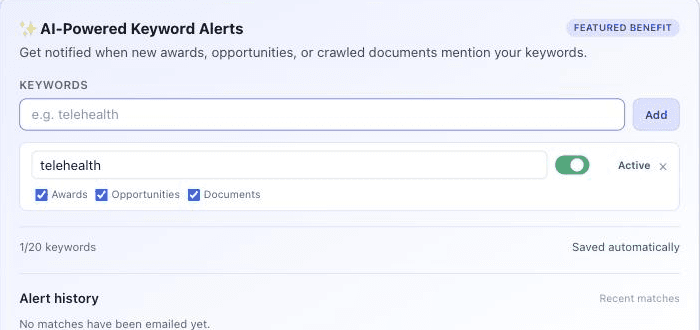
One keyword added, watching all three areas.
Uncheck a box to narrow that keyword's watch — for example, only Opportunities if you just want to hear about new solicitations, not every document that happens to mention the word.
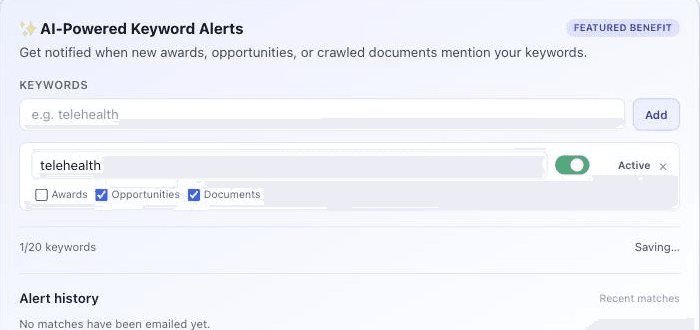
Unchecking a search area — the change autosaves within about a second.
Add as many keywords as you want, up to 20 for Featured Vendor. Each is independent.
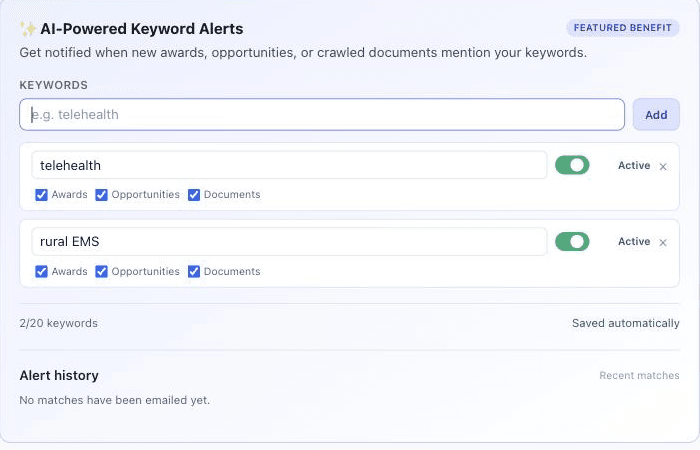
Two keywords tracked side by side.
Setting It Up — PRO / Team
Same feature, same card, on your general Profile page — available without a vendor listing. If your account is on a PRO or Team plan, the same Keyword Alert card appears on your Profile page, working exactly the same way — add a keyword, it gets its own row, changes autosave.
The one difference is the search-area picker: on Team, each keyword gets the same per-row Awards / Opportunities / Documents checkboxes as Featured Vendor. On PRO, there's no picker — every keyword simply watches all three areas. Team members on someone else's plan (not the owner) still get their own private alert under their own account — the owner never sees a member's keywords, and vice versa.
What "Search Areas" Means
| Awards | Announced state RHTP award recipients — who got funded and for what. |
| Opportunities | Tracked RFAs, RFPs, NOFOs, and grants — solicitations currently open or recently closed. |
| Documents | The underlying crawled source material — RFA PDFs, state reports, news, meeting minutes. |
Plan Comparison
| Featured Vendor | 20 keywords · per-keyword area picker |
| Team | 20 keywords · per-keyword area picker |
| PRO | 10 keywords · always all 3 areas |
FAQ
- Can I use a phrase with a comma, like "health pod, medical pod"? Yes, but it's treated as one literal keyword, not split into two. Add two separate rows to watch two separate terms.
- What happens if I remove a keyword and add the exact same word back later? It's treated as a brand-new watch — its "already notified" history resets.
- Do I need to save manually? No — every change saves on its own about half a second after you stop editing.
- Where do I see what's already been sent? The "Alert history" section at the bottom of the card lists your most recent matches with a link to each source.
- My plan lapsed — what happens to my keywords? They're kept as-is, just not run. Reactivating your plan (or Featured Vendor status) picks the same keywords back up automatically.
Set Up Your Keyword Alert
Sign in and add your first keyword from your Profile page — Featured Vendors and PRO/Team members see the card automatically.
Not a Featured Vendor Yet?
Featured Vendor listings include keyword alerts plus a logo-forward directory profile, contact-click tracking, and Vendor Wall placement.
Related Rural Care Journey resources